← Practice · October 6, 2026
How to Set Up a VPN on a Keenetic or Netcraze Router
VPN setup on Keenetic and Netcraze: WireGuard, OpenConnect, individual devices and LAN ports, a kill switch, DNS checks, and common problems.
12 min readnetworking

To set up a VPN on a Keenetic router, you need to install the required component, add a connection to the server, and decide which devices will use it. The last step is especially important: you can route your work computer through an encrypted tunnel while leaving the rest of your home devices on the regular connection.
This setup works for accessing an office network, your own server, or equipment at a remote site. Below, I'll cover WireGuard and OpenConnect setup, separate policies for devices and LAN ports, and how the network behaves when the VPN drops.
These instructions apply to KeeneticOS/NDMS 5.x. Some menu names depend on the model and firmware build.
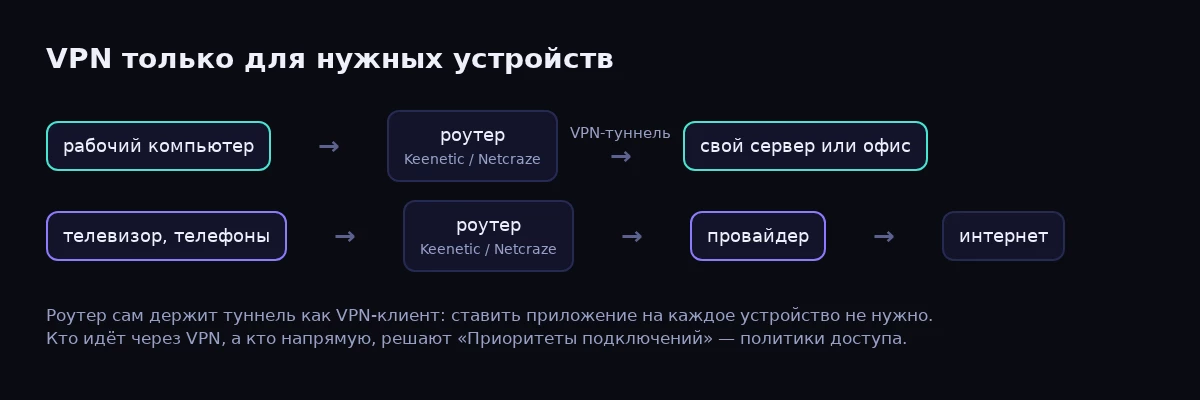
The router maintains the tunnel itself; only devices assigned the relevant policy use the VPN.
Keenetic and Netcraze: do the same instructions apply?
Netcraze equipment has been shipping in Russia and the EAEU since 2025. The manufacturer retained the software platform and compatibility with Keenetic devices for the RU/EAEU region, so the main VPN setup steps are the same. Details of the transition are described on the Netcraze website.
If you're searching for “VPN on Keenetic” or “VPN on Netcraze,” start by checking the model and system version in the web interface. An older Keenetic and a newer Netcraze may have different processors, memory capacities, and available components.
In this setup, the router acts as a VPN client: it connects to a remote server itself and routes traffic from selected devices through it. This does not require a separate VPN application on each computer.
The tunnel protects the connection between the router and the server. If a laptop connects directly to someone else's Wi-Fi, the home setup no longer applies to it. For travel, you need a separate client on the laptop or a router that handles its traffic.
Which VPN clients are available in KeeneticOS 5.x?
Depending on the model and installed components, the available clients include WireGuard, OpenConnect, OpenVPN, IPsec/IKEv2, L2TP/IPsec, SSTP, and PPTP.
WireGuard is convenient for your own server and for connecting sites. It usually provides good speeds with a moderate load on the router.
OpenConnect is compatible with Cisco AnyConnect and can transfer data over HTTPS, usually on TCP port 443. The protocol also supports DTLS/UDP transport if both sides support and use it. It is therefore worth checking the log to see which transport is actually in use. This is described in the OpenConnect documentation.
OpenVPN, IPsec/IKEv2, L2TP/IPsec, and SSTP are useful when the organization already runs a corresponding server. PPTP appears in older infrastructure, but it should not be chosen for a new secure connection.
What to consider with AmneziaWG
The WireGuard component includes ASC parameters corresponding to the first version of AmneziaWG:
Jc, Jmin, Jmax, S1, S2, H1, H2, H3, H4.
In the practical setup on which this article is based, the installed 5.1 firmware did not accept configurations from newer AmneziaWG versions with additional fields. However, this result cannot be generalized to the entire release branch.
The 5.1 changelog mentions a fix for the invalid I1 value import error, which means support for the new parameters is being worked on in the firmware. Compatibility with AmneziaWG 2.x/3.x, especially configurations containing HeaderProtectionKey, needs to be checked against the exact build and file format. KeeneticOS 5.1 changelog.
Deleting unfamiliar lines does not turn a new profile into a compatible old one: the server and client parameters must match.
How to choose a protocol
The table below is a practical guide, not a set of measurements. Actual performance depends on the processor, hardware acceleration, server, connection quality, and encryption settings.
| Protocol | Speed | Router load | Behavior on an unstable network | Complexity of running your own server |
|---|---|---|---|---|
| WireGuard / compatible AmneziaWG | Usually high | Usually low or moderate | Resumes traffic quickly; UDP availability and NAT matter | Low for WireGuard |
| OpenConnect | Moderate or high | Moderate | HTTPS is convenient for establishing a connection; packet loss reduces TCP throughput | Moderate: ocserv, certificate, users |
| OpenVPN | Often slower than WireGuard on the same router | Moderate or high | Depends on UDP/TCP; TCP is sensitive to packet loss | Moderate |
| IPsec/IKEv2 | High with suitable acceleration | Depends on the model | Parameter negotiation and NAT behavior matter | Moderate or high |
| L2TP/IPsec | Moderate | Moderate or high | Additional encapsulation complicates NAT troubleshooting | Moderate |
| SSTP | Moderate | Moderate or high | A TCP connection can slow down noticeably with packet loss | Moderate |
| PPTP | Can be high | Usually low | GRE and NAT issues are possible | Low, but the protocol is obsolete |
If you're setting up a server from scratch, WireGuard is a reasonable starting point. If you need HTTPS transport or already have the corresponding infrastructure, consider OpenConnect. For a work connection to an organization, use the protocol supported by its administrator first.
Preparing the router and installing components
Before making changes, save a configuration backup. Check that regular internet access works and prepare the connection details: a .conf file for WireGuard, or a server address and account for OpenConnect.
Components are installed through:
“Management → General settings → Change component set.”
In some versions, the section is called “System settings.” Find WireGuard VPN or OpenConnect VPN client, select the required component, and apply the changes. Wait for the update to finish and the router to reboot.
On entry-level models, the full selection may not fit in internal memory. Error 507 means there is not enough space for the components. Remove unused features, such as an unneeded media server or another VPN component, and try installing again. This is an internal storage limitation, not necessarily a shortage of RAM. The manufacturer's explanation of error 507.
Setting up WireGuard on Keenetic using a .conf file
Importing a connection
Open the router's web interface and follow these steps:
- Go to “Internet → Other connections.”
- Find the WireGuard section.
- Click “Upload from file.”
- Select the prepared
.conffile. - Open the newly created connection and give it a clear name, such as “Work server.”
- Check the peer parameters: the server's public key, connection endpoint, port, and allowed subnets.
Netcraze also supports importing a client file through this section. Manufacturer's instructions.
The file contains the client's private key. Do not publish it with screenshots or post it in a public discussion.
Office access or internet access through the server
If you only need access to office resources, specify the relevant remote subnets and configure routes to them. The home and office address ranges must not overlap.
If all internet traffic from selected devices needs to pass through the server, the configuration must allow that route, and the server must support traffic forwarding and outbound access. Enable “Use for accessing the Internet” in the connection settings.
This checkbox makes the connection available for that use. Access policies determine exactly which devices use it.
Checking the tunnel
Enable the connection and generate traffic by opening an allowed resource on the remote side. Then check the peer status, the time of the latest handshake, and the transmit and receive counters.
The switch being set to “Enabled” does not by itself confirm connectivity to the server. A working connection shows a handshake, and accessing a resource increases the counters in both directions.
In the router's CLI, you can check the interface status with:
show interface Wireguard0
Wireguard0 is an example name. You can find the required interface using show interface.
Setting up OpenConnect on Keenetic
After installing the component, open “Internet → Other connections.”
- Click “Add connection.”
- Select OpenConnect in the protocol field.
- Enter a name.
- Specify your server's address.
- Enter the username and password for a separate VPN account.
- If necessary, open the additional settings and select the underlying internet connection.
- Save the settings and enable the connection.
The form completion steps are provided in the OpenConnect client guide.
For an HTTPS/TCP 443 setup, the server must accept connections on that port. The domain name must match the certificate, and the router's clock must be correct. Certificate validation errors should be fixed on the server or in the trust settings.
Once connected, check the status, log, and counters. Then open an office resource from a client computer. If you plan to access the internet through the server, check the relevant connection setting and assign a policy to the device.
How to route only selected devices through the VPN
Keenetic uses “Connection priorities,” or access policies, for this. A policy defines which connections selected clients are allowed to use for access.
Suppose your work computer needs to use your own server, while the TV and phones at home use the ISP connection.
Create a separate policy
Open “Internet → Connection priorities,” add a policy, and name it something like “Work via VPN.” Include the required VPN connection in it.
Leave the other devices on a policy with the regular internet connection. Then go to the policy assignment section, find the work computer, and assign the new policy to it. Register the device in the client list first.
Keenetic lets you assign a policy to an individual device or an entire segment. DNS servers are also taken into account based on the connections included in the policy. Access policy documentation.
After making the change, close existing connections on the computer and open the resource again. Check the result from the intended device: a diagnostic request from the router itself may use a different route.
Put LAN ports in a separate segment
If several wired devices need to use the VPN, it is more convenient to group them into a segment:
- Open “My networks and Wi-Fi → Segments.”
- Create a “Work equipment” segment.
- Allocate a separate subnet to it and enable DHCP.
- In the port and VLAN settings, assign the required LAN ports to this segment.
- Assign the “Work via VPN” policy to the segment.
- Reconnect the devices so they receive the new network settings.
For a regular computer, the port must deliver the segment's traffic without a VLAN tag. Carrying multiple VLANs over one cable to a managed switch requires matching tagging settings on both devices.
Check the individual policies of registered clients: they may take precedence over the segment policy. To inherit the policy, select the option to use the segment's default policy. Keenetic segment configuration.
The VPN determines the outbound route, while segmentation and the firewall restrict access between groups of equipment. These settings solve different problems.
Configure a kill switch
To prevent devices from switching to direct internet access when the VPN drops, leave only the VPN connection in their policy. Remove the wired ISP connection, mobile backup, and any other direct connections from it.
If you leave the ISP connection as the second priority, you get failover: devices will be able to connect directly when the tunnel is unavailable.
Test the result in practice: disconnect the VPN, try to open a new connection from the work computer, and confirm that internet access is unavailable. It should continue working on devices using the regular home policy.
For a complete check, also inspect IPv6 and any previously created static routes: routing exceptions can change the expected behavior.

For a kill switch, leave only the VPN in the policy and remove the ISP connection and mobile backup.
Checking DNS and IPv6 for leaks
A working tunnel does not guarantee that all requests take the selected path. DNS and IPv6 need separate checks.
DNS. Check which servers the device receives and which ones the router uses. An additional DNS server assigned to “Any connection” may be used by different policies. Configure an appropriate DNS server for the work segment and make sure it is accessible through the VPN.
Account for secure DNS in the browser: an application may choose its own resolver. DoH encrypts the query, but does not by itself confirm that it travels through your tunnel.
IPv6. If the VPN is configured only for IPv4, the device may retain direct IPv6 access. Either configure IPv6 through the tunnel and check the routing, or disable it for the protected segment if it is not needed there.
Run checks with the VPN both enabled and disabled. Compare the public IPv4 address, the presence of public IPv6 connectivity, and the DNS resolvers in use. For more precise diagnostics, compare the results with counters and packet captures on your server. Viewing the local DNS address with a single command does not prove the absence of a leak.
Common VPN setup problems
No WireGuard handshake
Check the keys, server address, UDP port, and whether the server allows the incoming connection. Make sure the client is registered on the server side.
For AmneziaWG, also compare the protocol version and configuration parameters. A successful file import does not always mean that all of its features are supported.
If there is a handshake but resources are inaccessible, check the allowed subnets, routes, packet forwarding, and firewall. This is a different stage of troubleshooting.
The connection drops after about a minute
Record the time of the disconnection and open the router's log. At the same time, check the service log, counters, and traffic capture on the server.
On a Linux server, these commands can be useful, for example:
sudo wg show
sudo journalctl -u ocserv --since "10 minutes ago"
The first command applies to standard WireGuard; the second applies to ocserv installed as a systemd service. For a container installation, use the container's tools to view the logs.
Determine whether the disconnection happens only after inactivity or during data transfer. For WireGuard behind NAT, PersistentKeepalive sometimes helps; the documentation gives a typical interval of 25 seconds. Enable it when needed. WireGuard guide.
If the problem is related to the route between sites, a different protocol or an intermediate server in another data center sometimes helps. Choose a solution after comparing traffic at both ends.
The router is behind double NAT
Two layers of NAT usually do not prevent an outbound VPN client connection, but they complicate timer behavior and troubleshooting. Forwarding an inbound port to the home Keenetic solely for a client connection is usually unnecessary.
The requirements are different for a server behind NAT: it needs to be reachable from outside. Also check that the subnets of the two routers and the remote site do not overlap.
The panel opens through KeenDNS or CrazeDNS, but SSH does not work
Standard KeenDNS/CrazeDNS cloud access serves HTTP/HTTPS. It is not general-purpose TCP port forwarding: a working web panel does not mean SSH is available. CrazeDNS limitations.
For SSH, use access through a configured VPN or separately configured direct access. The router's supported SSTP/OpenConnect cloud scenarios use a separate mechanism.
The VPN component will not install
If you get error 507, reduce the component set. Remove only features that are actually unused. After rebooting, check that the VPN section is present and the main internet connection is intact.
Where to get a VPN server
You can connect to an existing office server or deploy your own on a VPS: WireGuard, or ocserv for OpenConnect.
Running your own server requires making the necessary port reachable, applying updates, configuring users or keys, routing, and firewall rules. If internet traffic needs to pass through the VPS, traffic forwarding and usually NAT must also be configured.
It is better to create a separate profile for each router. This makes it easier to revoke access and identify the source of a problem.
How an AI did this is covered in a separate case study, “Configuring Keenetic and Netcraze with AI”.
FAQ
Can I set up a VPN for the whole home at once?
Yes. Assign the appropriate policy to the entire home segment. Before doing so, check speed, DNS, IPv6, and behavior when the tunnel disconnects. Account for individual device policies, which may override the segment settings.
Can I enable the VPN for just one computer?
Yes. Register the computer in the client list and assign it a separate policy. If its network adapter or randomized MAC address changes, check that the router recognizes the intended device.
Do I need a public IP address at home?
Usually not for an outbound connection from the router to a reachable VPN server. If the server is hosted at home and accepts direct connections from outside, the reachability requirements are different.
Why is the VPN connected but the internet does not work?
There may be errors in DNS, routes, allowed subnets, or traffic forwarding on the server. First check access to a resource inside the tunnel, then name resolution and outbound access through the server.
Will any AmneziaWG file work?
No. The protocol version, file parameters, and exact KeeneticOS/NDMS build matter. If the import fails, save the error text and obtain a compatible configuration that matches the server.
Will the VPN work on a TV?
Yes, if the TV is connected to the router and assigned the required policy. A separate client on the TV is not needed. Performance depends on the router, server, and connection quality.
How can I confirm that the kill switch works?
Disconnect the VPN and test new connections from the selected device over IPv4 and IPv6. Direct internet access should be unavailable. Once the tunnel is restored, access should return without changing the policy.
Need help with setup?
If you need help with setup, contact us. We'll help connect your Keenetic or Netcraze to your own server or office, assign the required devices and LAN ports, and check DNS, IPv6, and network behavior when the tunnel drops. To get started, all we need is the router model, firmware version, and a description of the task.